Bot
Build Multi-Domain RAG Systems with Specialized Knowledge Bases

This Verified Node Spotlight was written by Jenna Pederson, Staff Developer Advocate for Pinecone.
Imagine you manage multiple vacation rental properties. A guest at one of your properties texts asking how to turn on the heat, but you accidentally send them instructions for your other property’s completely different thermostat. You look unprofessional, your guest is confused, and now they are cold.
This isn’t just a customer service nightmare, but a knowledge management problem. When you shove all your property documentation into one knowledge base, you’re asking your AI to search through everything every time to figure out what’s relevant. It’s like creating a spreadsheet with 10,000 rows and 30 columns and never separating your data into tabs. Our brains don’t work that way, and neither does our business or AI.
The same principle that pushes us to separate spreadsheet tabs should inform our AI architecture. Different domains need different contexts.
In this article, we’ll solve this problem by building a workflow that routes queries to multiple specialized knowledge bases based on context (i.e. which property the guest is staying at). You can adapt this pattern to franchise locations, agency clients, or customer support tiers—any scenario where different users or steps in a workflow need different context.
Let’s break down the main components we’ll need and then connect it all together.
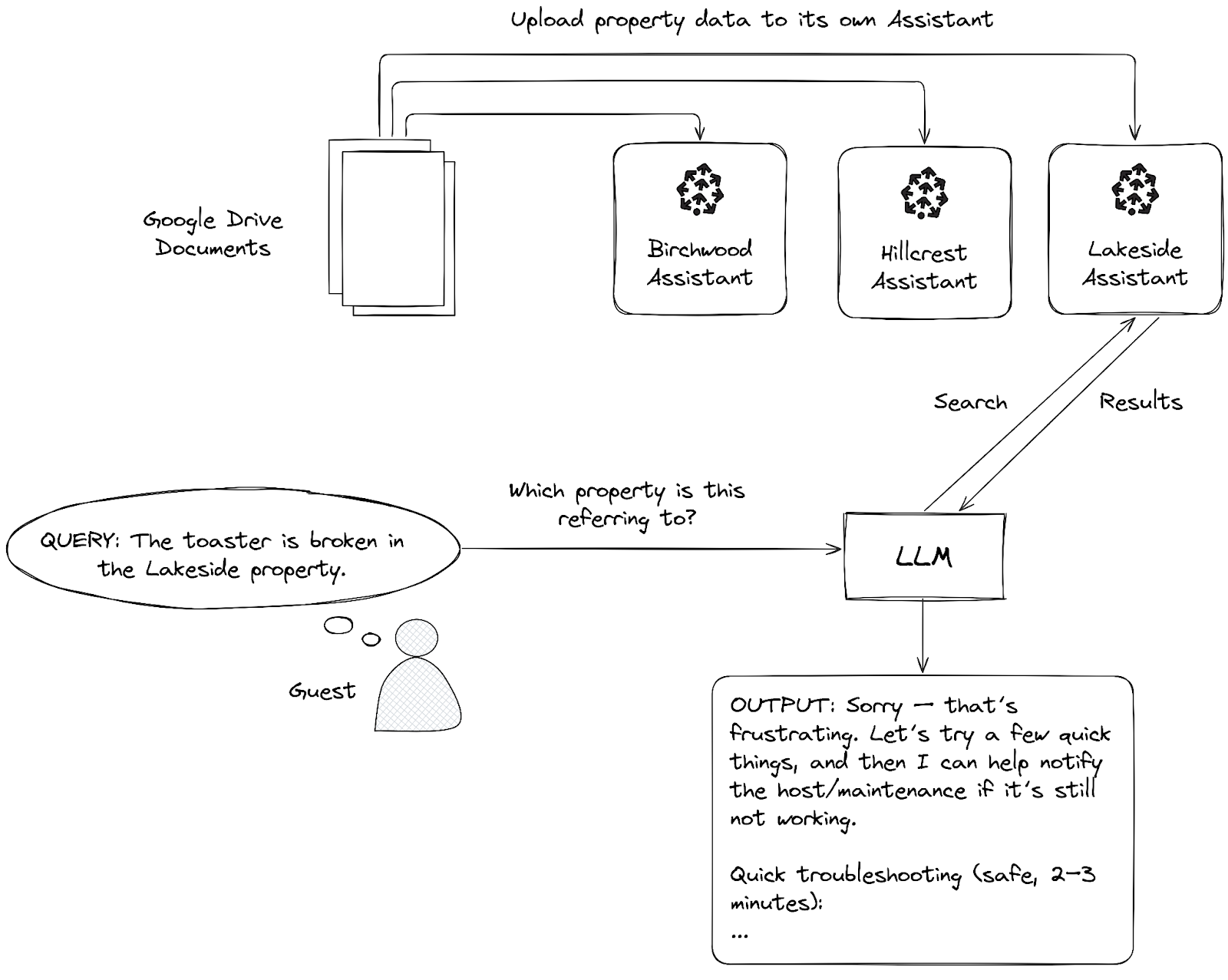
We’ll store our source files in a Google Drive folder (or any other document storage provider). This will hold the raw documents about each of our properties, in our case, markdown format.
A chat interface will allow guests to ask questions about their property, request a service appointment, or get a call back from the property manager. For the purposes of this tutorial, we’ll use n8n’s built-in Chat trigger, but you could respond to a webhook, a Slack message, a What’s App message, or Telegram message.
Next, we’ll need a way to search for answers in our data. Remember, our data is specialized and contains info (like the Wi-Fi password), so we can’t just route all requests directly to a model like Claude or OpenAI.
We’ll need something a little smarter than a simple keyword search. We’ll be using natural language to ask questions, so we’ll need to search by meaning. For instance, if a guest says “It’s freezing in here,” notice that there’s no mention of thermostat, heat, HVAC, or temperature control in the message. A semantic search will search by meaning and find information for controlling the heating system. If we only had access to a simple keyword search, then we might get results about a freezer for storing food.
When we search by meaning using semantic search, we’ll get results similar to “freezing” using the surrounding context of both the query and the data in our knowledge base. The results about a chest freezer might still be returned, but they would likely be ranked lower in semantic meaning than results about adjusting the thermostat.
This type of search is more sophisticated, but it’s also more complex to implement. In our example, we’ll use Pinecone Assistant to manage this complexity for us. The Assistant handles chunking our data with the right chunking strategy, converting our chunk data into vector embeddings to encode the meaning, query planning, executing the semantic search, and re-ranking the results.
Note: If you’ve used the Pinecone Vector Store node before, some of these steps may be familiar or have even tripped you up.
The results we get back from this search are chunks of our data, also known as context snippets.
Finally, once we have our search results in chunks, we need to turn them back into something we can read and understand. We’ll use a large language model to do that. We pass the context snippets to the model with instructions to transform our data back into a natural text response that the user can understand.
This pattern of retrieving relevant context from your knowledge base and augmenting the model’s response with that context is called Retrieval-Augmented Generation (RAG).
Now that we understand these main components, let’s build this workflow!